Building a Component Library That Actually Works
Step-by-step approach to organizing components, creating variants, and documenting them so your team uses them instead of creating duplicates.
Read MoreHow to set up Figma for remote and hybrid teams so feedback flows naturally and everyone knows what’s happening without constant meetings.
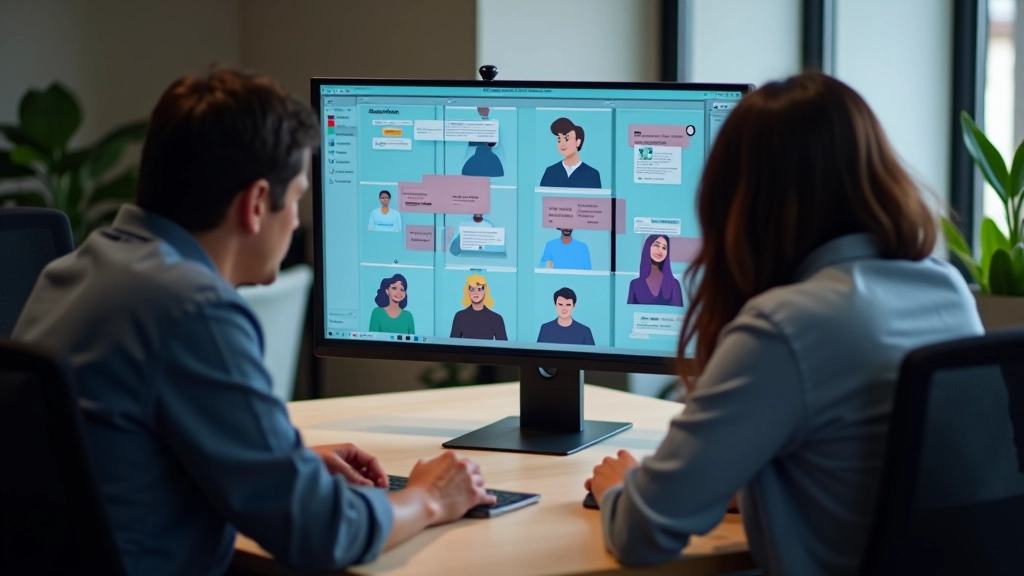
Working together on design doesn’t mean everyone needs to be in the same room. But it does mean you need the right setup. When feedback happens in real-time and everyone can see what’s changing, things move faster. You’ll catch problems early, avoid duplicate work, and actually get aligned instead of discovering misunderstandings three weeks into a project.
The difference between a team that collaborates well and one that doesn’t usually comes down to one thing: visibility. If people don’t know what’s happening, they can’t contribute meaningfully. They’ll send emails asking for updates, schedule unnecessary check-in calls, and second-guess decisions. But when everyone’s watching the same file update in real-time, it’s like having a design room open all day.

Start with the basics. You’ll want a shared team file that everyone accesses from the same place. Don’t scatter designs across 12 different Figma projects — that’s how people end up working on outdated versions. Create a clear folder structure that mirrors your actual workflow.
Here’s what works: A main project folder with clear naming. Something like “Active Projects” and “Archive” at the top level. Then within each project, organize by feature or product area. If you’re designing an app with authentication, checkout, and settings, those get their own files. People will intuitively know where to find things.
Set viewing permissions carefully. Everyone on your team should have at least edit access to the files they work on. But you might want to keep brand assets or foundational design system components as view-only for most people — that prevents accidental changes to things that affect everything else.
Comments are where collaboration either thrives or falls apart. The key is being specific. Don’t just say “this doesn’t feel right” — point to exactly what you mean. Use Figma’s pin feature to comment on a specific element. Reference the actual component or interaction you’re discussing.
Create a feedback culture where people aren’t defensive. Comments shouldn’t feel like criticism — they’re just part of the design process. The best teams reply to comments quickly. Not instantly, but within a few hours. If feedback sits for days, people lose context and momentum drops.
Threaded conversations matter. Figma lets you reply to specific comments. Use that. It keeps conversations organized instead of becoming a messy pile of notes. And when someone resolves a comment, they’re confirming they understood and addressed it.
One of Figma’s best features is watching other people work in real-time. You’ll see their cursors moving, watch them select components, see what they’re zoomed in on. It’s like being in the same room.
You’ll see where teammates are working and what they’re editing. This prevents stepping on each other’s work. If someone’s adjusting the button component, you know not to modify it at the same moment.
Notice which frame someone’s looking at. It helps you understand what they’re focusing on. You might discover they’re struggling with something you could help with just by seeing where they’re zoomed in.
Two people can work on different parts of the same file simultaneously. One might be refining components while another works on layouts. You’ll both see each other’s changes instantly.
Junior designers can watch experienced ones work. It’s like having a constant design masterclass happening. You’ll pick up techniques and approaches just by watching how others solve problems.
Your team needs shared standards. Decide together how you’ll name components, organize files, and handle versions. Write it down. Seriously. A simple one-page style guide prevents so many headaches.
Version control isn’t as critical in Figma as it is in code, but it still matters. Don’t just keep editing the main file forever. When you’re starting something new or experimenting significantly, create a branch or duplicate the file. Keep the “main” file clean and current.
Schedule regular reviews. Maybe twice a week, spend 30 minutes looking at what everyone’s been working on. Not a formal meeting where you critique everything. Just a casual walkthrough. It keeps everyone aligned and catches problems early before they cascade.
Async feedback works better than synchronous for distributed teams. Instead of waiting for a meeting, people drop comments when they have thoughts. The designer reviews them when they’re fresh and focused, not during a draining meeting. Decisions happen faster.
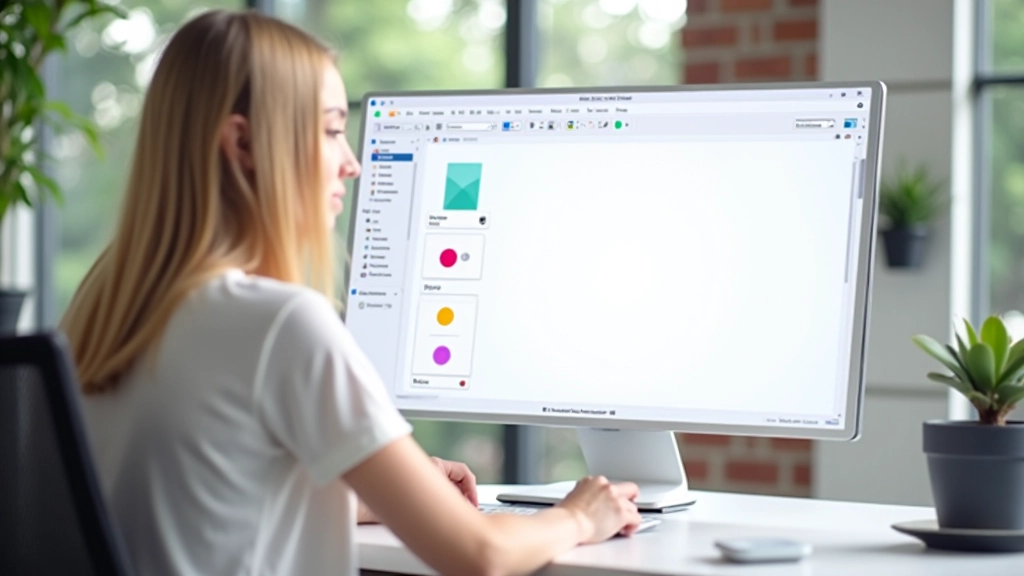
Connect Figma to Slack so file updates get shared automatically. When someone finishes a design, it can post to a channel. Reduces the “hey, have you seen the new designs?” messages.
Developers can inspect components and pull measurements directly from Figma. No more screenshots and emails asking “what’s the exact padding here?” It’s all transparent in the file.
Components published from a main library file automatically update across all projects using them. One change to the button component and it cascades everywhere instantly.
Create presentations directly in Figma instead of jumping to PowerPoint. Board mode lets you walk through designs with stakeholders right there in the file. No exporting, no context switching.
“We used to have design reviews every Monday morning that would run two hours easy. Now we’re mostly async with comments. It’s actually faster and people engage more thoughtfully because they’re not trying to remember what they said last week.”
— Sarah, Design Lead at a 15-person design team
You don’t need to overhaul everything at once. Start small. Pick one project and move it into a shared Figma team space. Set up a basic folder structure. Enable comments and let people know you’ll be reviewing them daily. That’s it. You’ll see pretty quickly how much smoother things move when everyone can see what’s happening.
The teams that do this well aren’t necessarily bigger or more experienced. They’re just intentional about how they communicate through their design files. They’ve decided that the file itself is the source of truth, not emails about the file. It’s a mindset shift, and it makes everything else easier.
Try it. Set up collaborative viewing for one file this week. Spend a day actually using the comment features. Watch how your teammates work when they know you can see them. That’s when you’ll understand why real-time collaboration changes how teams design together.
Explore more resources on building design systems and component libraries that work with your collaborative process.
See Related ResourcesThis article provides general guidance on setting up Figma for team collaboration. Every team’s workflow is unique, and what works best depends on your specific project structure, team size, and organizational needs. These recommendations are based on common practices and best approaches, but you’ll want to adapt them to fit your actual situation. Consider your team’s preferences, technical constraints, and project requirements when implementing these strategies.